Should Bloggers Focus on Daily Prompts or Build a Niche Blog?

Why do simple Daily Prompt posts on WordPress attract far more views and likes than carefully written articles? The answer reveals a powerful lesson about community, algorithms, and human behaviour.

I ran a small experiment on my blog. The results were surprising. Short Daily Prompt posts received huge engagement, while deeper articles struggled. Here is what I discovered.

The Daily Prompt Paradox: 

What My WordPress Experiment Taught Me About Growth

Rise&Inspire | Personal Development

Blogging often feels like planting seeds in a garden. Some seeds sprout overnight, while others take months before they break through the soil.

Recently, I conducted a simple experiment on my blog. I posted two different kinds of articles:

• Responses to WordPress Daily Prompts

• Original deep reflections and niche articles

The results surprised me.

The Daily Prompt posts—sometimes even repeating similar themes—quickly gathered large numbers of views, likes, and comments. Meanwhile, my longer reflective pieces received far fewer immediate reactions, even though they required much more thought and effort.

This observation led me to an important question:

Why do Daily Prompt posts perform so well?

The answer lies not only in content but in community dynamics and platform design.

The Hidden Engine Behind Daily Prompt Engagement

Daily Prompts act like a central meeting place within the WordPress ecosystem.

When thousands of bloggers respond to the same prompt, something powerful happens:

• A shared conversation begins

• Readers explore multiple responses

• Bloggers interact with one another

• Engagement multiplies

Your post becomes part of a collective stream of creativity.

Instead of standing alone on the internet, your article joins a crowded marketplace of ideas.

The Community Reciprocity Effect

Among prompt bloggers there is an unwritten rule:

“If you read my response, I will read yours.”

This simple behaviour creates a powerful loop:

1. Someone reads your post

2. They click Like

3. You receive a notification

4. You visit their blog

5. You return the engagement

Suddenly a single post creates a chain reaction of interaction.

This is not manipulation—it is simply community behaviour.

Why the WordPress Algorithm Favours Prompt Posts

WordPress Reader also plays a role.

Posts tagged with:

• Daily Prompt

• Bloganuary

• Writing Prompt

are automatically grouped together.

Thousands of users follow these tags, which means your article becomes easier to discover.

Instead of relying only on search engines or your personal audience, prompt posts gain access to a built-in discovery network.

Why Deep Articles Grow More Slowly

Now consider a different type of post:

• A spiritual reflection

• A theological insight

• A motivational essay

• A long-form research article

These posts require more time to read and reflect upon.

They may not generate instant likes, but they often attract serious readers who return again and again.

This is the difference between:

quick engagement

and

lasting influence.

The Engagement Reality

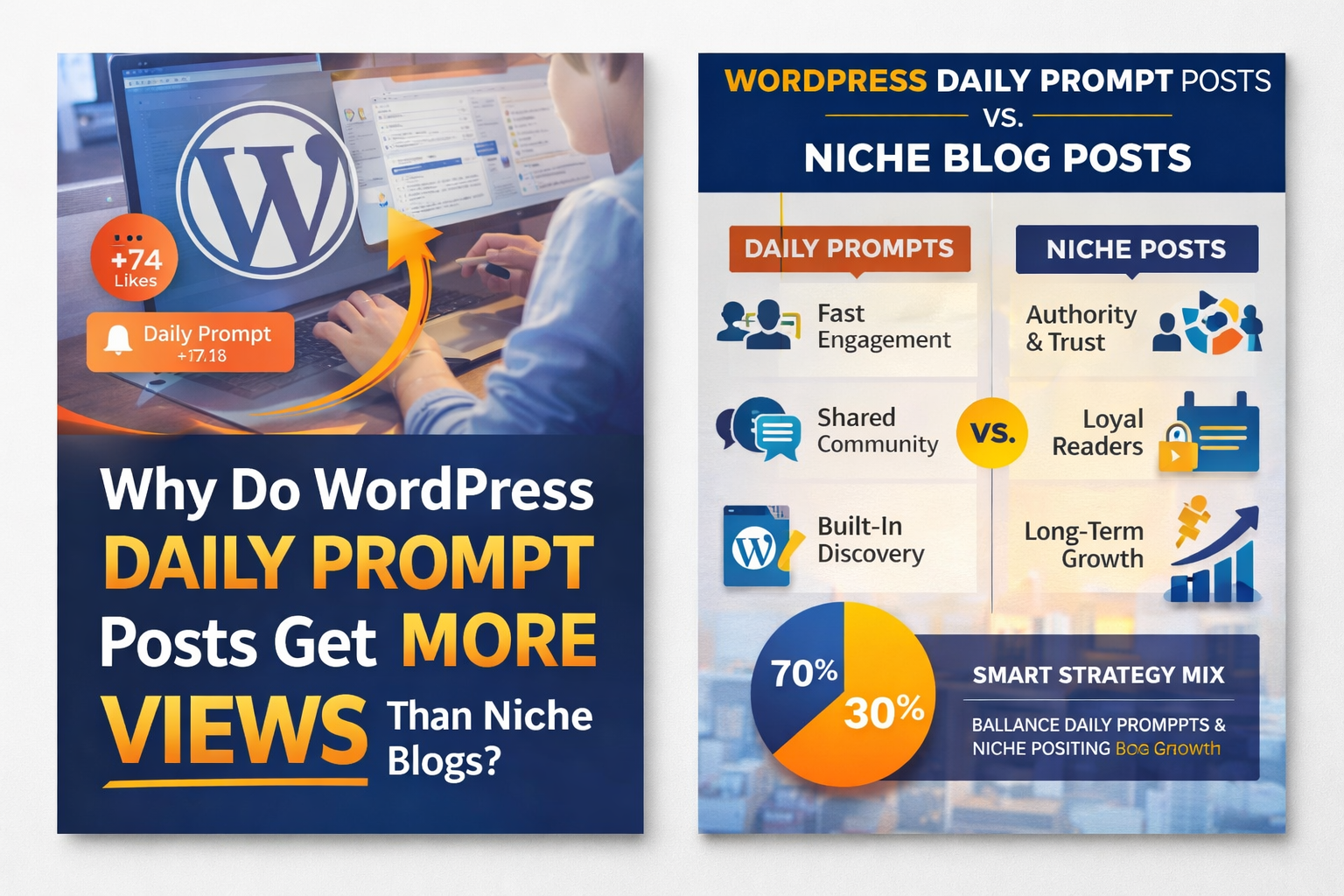
The chart below illustrates the typical pattern many bloggers experience.
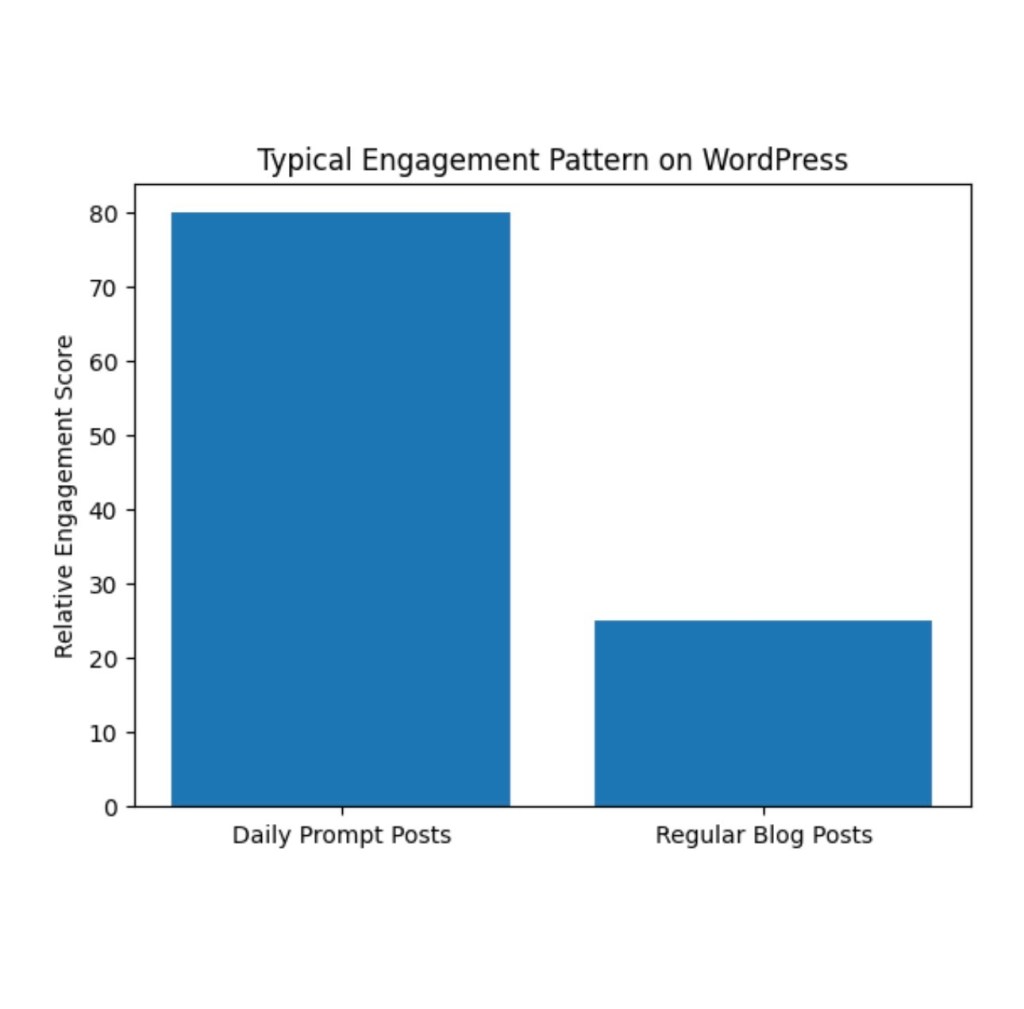
You will notice that Daily Prompt posts often produce much higher immediate engagement than regular articles.

(See the chart above.)

But this does not mean prompt posts are more valuable. It simply means they operate inside a different engagement system.

The Real Lesson: Views vs. Value

Daily Prompts bring:

• fast interaction

• social discovery

• community connection

But niche-focused posts bring:

• authority

• loyal readers

• long-term growth

One creates momentum.

The other builds foundation.

A wise blogger understands the difference.

The Smart Blogging Strategy

Instead of choosing one over the other, the most effective approach is balance.

The diagram above illustrates a powerful strategy many successful bloggers use.

About 70–80% of effort

should go toward:

• niche content

• thoughtful articles

• meaningful reflections

About 20–30%

can be devoted to:

• Daily Prompts

• community interaction

• creative writing exercises

This balance allows you to enjoy the energy of the community while steadily building your own voice and identity.

A Lesson Beyond Blogging

This discovery taught me something deeper about personal growth.

In life, we often chase the things that produce quick applause.

But the most meaningful work—the kind that shapes lives and builds legacy—often grows slowly and quietly.

Daily Prompts are like sparks of conversation.

But thoughtful writing is like planting trees.

Both have value.

The spark brings light for a moment.

The tree gives shade for generations.

Reflection for Writers

If you are a blogger, ask yourself:

• Are you chasing quick likes?

• Or building something meaningful?

• Are you writing for algorithms?

• Or writing for people?

The best path is not choosing one or the other.

It is learning to use the system wisely while staying true to your purpose.

Because in the end, blogging is not about statistics.

It is about impact.

Explore more at the Rise & Inspire archive |  Personal Development

Website: Home | Blog | About Us | Contact| Resources

Word Count:790
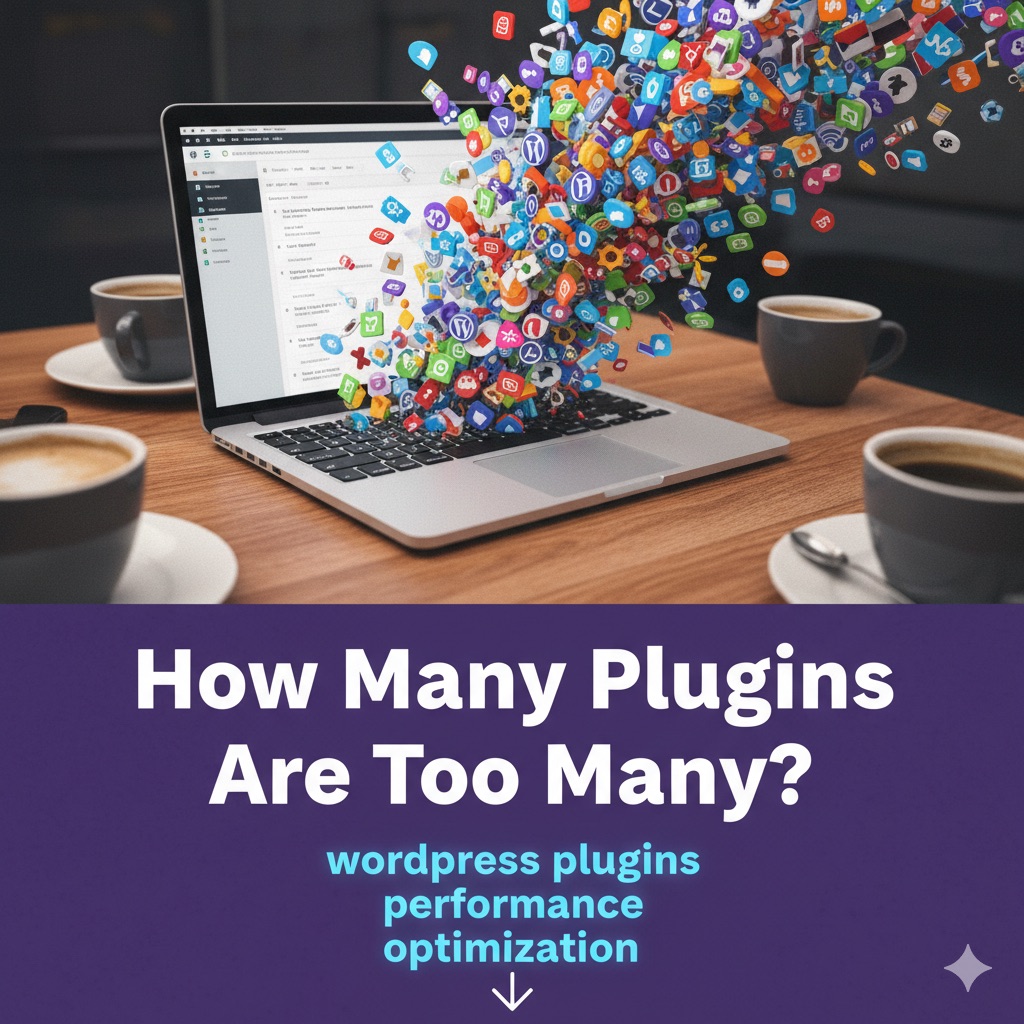
What Happens When You Install Too Many WordPress Plugins? (And How to Fix It Fast)

Before You Dive In

Many bloggers using WordPress believe that installing more plugins enhances their site’s look, feel, and productivity. While plugins do add flexibility and power, too many can harm your site’s speed and stability.

So, how many plugins are too many?
Is there a safe number or a smarter way to choose what really belongs?

Let’s explore how plugin overload impacts your WordPress performance — and how to keep your website fast, secure, and beautifully balanced.

Understanding the WordPress Plugin Paradox

Every creator faces it: a shiny new plugin promising better SEO, faster loading, or smarter analytics.
You click “Install,” and your dashboard feels stronger — until one day, your site starts to slow.

Pages take a moment longer to load. Google PageSpeed dips into yellow.
You start to wonder:
“Did I go too far? Can too many plugins slow down my WordPress site?”

Welcome to the paradox of WordPress power.

The Truth About Plugin Count and Performance

It’s not the number of plugins that slows a site down — it’s how efficiently they’re built.
You can run forty lightweight plugins and stay lightning-fast, or ten heavy plugins that drag your site to a crawl.

Each plugin adds weight:

  • Feathers – lightweight scripts and admin tools
  • Bricks – heavy plugins loading JavaScript, CSS, or database queries on every page

The key is smart stacking — not fewer plugins, but better-chosen ones.

What the Tests Reveal

According to studies by WPBeginner, Kinsta, and WP Rocket Labs, plugin count alone doesn’t define performance — code efficiency does.
Sites with thirty-five lightweight plugins averaged a 1.4-second load time, while those with twelve heavy plugins took more than four seconds.

The takeaway: monitor your data. Run GTmetrix, Pingdom, or Google PageSpeed Insights after each major change. Your metrics never lie.

The Three Plugin Types That Most Affect Speed

Page Builders and Design Add-ons

Tools like Elementor, Divi, and WPBakery give incredible creative freedom but can be heavy.
Avoid stacking too many design add-ons on top of a page builder.

Background Workers

Backup and security plugins that run in real time can slow performance.
Schedule backups for off-peak hours and rely on your hosting-level firewall when possible.

External Fetchers

Social feeds, analytics widgets, and ad scripts call data from external servers.
Too many can overload your homepage with requests and slow down the user experience.

Behind the Scenes: How Plugins Behave

Your WordPress site is like a café.
Each plugin is an employee — one brews coffee, another takes orders, another cleans.
A few efficient staff keep things running smoothly. Too many overlapping roles, and chaos begins.

Optimisation isn’t about firing staff — it’s about assigning clear, purposeful roles.

Before You Install Another Plugin: Quick Reality Check

Before you hit “Install,” ask:

  • Does my host or theme already include this feature?
  • Does it load scripts site-wide or only where needed?
  • When was it last updated, and is it well-supported?
  • Are there known compatibility issues?

If it passes this checklist, install it confidently.

The “One Purpose Rule” for Smart Plugin Management

“One plugin per purpose.”

You don’t need overlapping tools. Redundancy slows your site and can cause conflicts.

  • One SEO plugin (Rank Math or Yoast)
  • One caching plugin (WP Rocket or FlyingPress)
  • One image optimiser (ShortPixel, Imagify, or Smush)

That’s your performance foundation.

When Plugins Become Security Risks

Outdated plugins can open security holes.
In 2024, over seventy percent of WordPress breaches came from plugins not updated in six months.

Check “Last Updated” regularly, enable auto-updates for trusted tools, and schedule a monthly Plugin Health Check.
If a plugin seems abandoned, replace it.

Make Your Plugins Work With You, Not Against You

Optimise smarter with these strategies:

  • Use a performance plugin such as WP Rocket, FlyingPress, or LiteSpeed Cache to handle caching and lazy loading.
  • Optimise images. Compress uploads with Imagify or ShortPixel to reduce page weight.
  • Disable unused features. Perfmatters or Asset CleanUp can prevent unnecessary scripts from loading.
  • Audit regularly. Use Query Monitor to identify plugins that add significant load time.

Your Plugin Performance Toolkit

Keep these free tools handy:

  • Query Monitor – Measures plugin impact
  • GTmetrix or Pingdom – Compares speed before and after installs
  • Health Check and Troubleshooting – Safe testing mode for plugins
  • Site Kit by Google – Monitors site performance over time

The Plugin Pyramid for a Healthy WordPress Site

Base Layer (Essential)

  • Rank Math SEO or Yoast SEO
  • WP Rocket or FlyingPress
  • Wordfence or Sucuri
  • Imagify or ShortPixel

Middle Layer (Enhancers)

  • Site Kit by Google
  • Auto Image Attributes
  • Media File Renamer
  • UpdraftPlus (scheduled backups)

Top Layer (Experience and Engagement)

  • Elementor or Gutenberg Add-ons
  • Schema Pro
  • Social Share Plugins such as Social Warfare or Sassy

The base gives you strength, the middle adds efficiency, and the top creates a polished user experience.

Let’s Talk Plugins

How many plugins are you running right now?
Share your number in the comments and tell us which one you can’t live without.
Your answers might surprise others and inspire their next optimisation round.

The Creator’s Truth

A fast, stable WordPress site isn’t about minimalism — it’s about mindfulness.
Each plugin should serve a purpose: performance, security, or creativity.

When every plugin earns its place, your site becomes what it’s meant to be —
a living, fast, and secure platform for ideas that matter.

Build light. Build smart. Build with balance.

Further Reading and Resources

Optional FAQ Section

How many WordPress plugins are too many?
There’s no fixed number — it depends on quality and efficiency. A well-coded site can run forty or more plugins smoothly if optimised properly.

Do inactive plugins slow down WordPress?
Inactive plugins don’t affect speed but can pose security risks. Delete ones you no longer need.

What are the best plugins to improve site speed?
WP Rocket, FlyingPress, LiteSpeed Cache, and ShortPixel are top performers for caching and image optimisation.

Further Reading from Rise & Inspire

Explore more at the Rise & Inspire archive |  Tech Insights 

Visit Rise&Inspire to explore more on faith, law, technology, and the pursuit of purposeful living.

© 2025 Rise & Inspire. Follow our journey of reflection, renewal, and relevance.

Website: Home | Blog | About Us | Contact| Resources

Word Count:1134

What’s the Purpose of Our New Star Rating Feature?

We Value Your Voice — Now You Can Rate Every Post!

At Rise & Inspire, our mission is to create content that motivates, uplifts, and adds real value to your life. But there’s one thing more powerful than publishing great content — and that’s hearing back from you.

That’s why we’re excited to announce a new feature on our blog:
🌟 You can now rate each post with just a click.

Why This Matters

We’ve implemented a simple rating system to gather quick, meaningful feedback from our readers. Whether a post made you think, smile, or inspired you to take action — your rating helps us understand what truly resonates.

It takes only a second, and your input helps shape the future of Rise & Inspire.

📌 How It Works

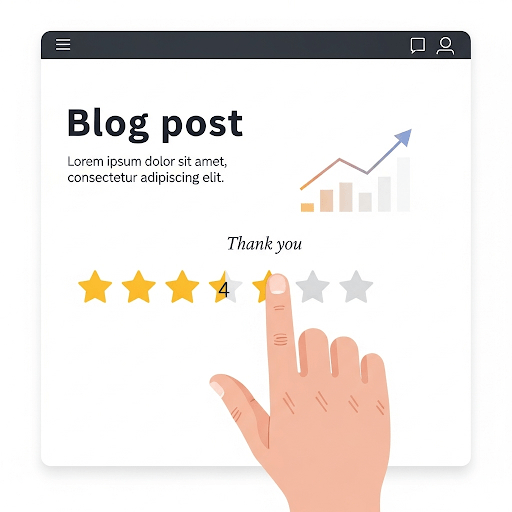
At the top of each blog post, you’ll now see a star rating bar. Just click the number of stars that reflects how you felt about the post.

⭐ 1 = Needs Work

⭐⭐ 2 = Fair

⭐⭐⭐ 3 = Good

⭐⭐⭐⭐ 4 = Great

⭐⭐⭐⭐⭐ 5 = Loved It!

No forms, no login — just your honest feedback.

🙏 A Personal Note

I’d appreciate it if you could take a moment to rate a post when you read one. Your voice matters — and your support means the world to me.
— Johnbritto. K

Thank you for being part of the Rise & Inspire community. Let’s continue growing together — one idea, one post, one voice at a time. 💬✨

Explore more at the Rise & Inspire archive | Personal Development

Categories: Astrology & Numerology | Daily Prompts | Law | Motivational Blogs | Motivational Quotes | Others | Personal Development | Tech Insights | Wake-Up Calls

© 2025 Rise & Inspire. All Rights Reserved.
Follow our journey of reflection, renewal, and relevance at @RiseNinspireHub
Website: Home | Blog | About Us | Contact |Resources

Word Count:307

FACING JETPACK GLITCHES AFTER AN UPDATE? COULD A SIMPLE RESET HELP?

Facing Jetpack Glitches After an Update? Could a Simple Reset Help?

Jetpack not updating on your WordPress site? Discover how simply deactivating and reactivating the plugin can solve glitches, restore connections, and get your site running smoothly again.

Tech Wisdom for Today: Jetpack Troubles? A Simple Reset Might Be the Answer

In the same way our spiritual lives sometimes need a pause for realignment, so do the tools we use to build our digital ministries and messages.

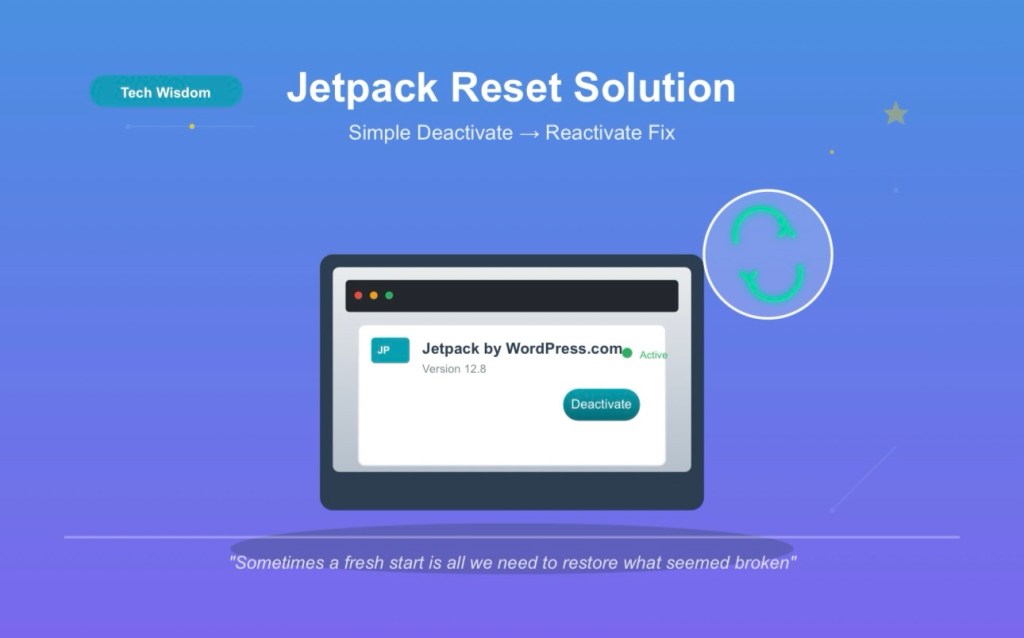
If you’re using Jetpack by WordPress.com and have seen a message like “Unable to update”, you’re not alone. This is a common issue, and thankfully, it has a straightforward fix: temporarily deactivating and reactivating Jetpack.

Here’s how and why this reset can work wonders — even when everything else seems stuck.

What Does “Deactivate and Reactivate Jetpack” Mean?

In WordPress, plugins are like light switches — when activated, they’re running in the background. When deactivated, they pause all functions.

Deactivating Jetpack doesn’t uninstall it — it just “refreshes” it.

Why It Often Fixes the Problem

Just as we sometimes need to step back to hear God more clearly, plugins can benefit from a reset too. Deactivation can:

  • Clear temporary system conflicts
  • Reboot Jetpack’s connection to WordPress.com
  • Prompt stalled updates to resume
  • Resolve plugin communication errors or cache corruption

How to Do It – Step by Step

  1. Log into your WordPress Dashboard
  2. Go to Plugins > Installed Plugins
  3. Locate Jetpack by WordPress.com
  4. Click Deactivate
  5. Once it turns off, click Activate again

Done! You’ve just given Jetpack the fresh breath it needed.

What to Do After Reactivating

  • Check if the update error is resolved
  • Visit Jetpack > Dashboard to see if it’s running normally
  • If prompted, reconnect your WordPress.com account

This small step often solves a big problem.

A Few Closing Words

Just like God’s grace renews us daily, sometimes a system refresh is all it takes to restore order and flow. Don’t be discouraged by digital hiccups — they’re opportunities to practice patience, resilience, and curiosity.

Keep building, keep rising, and keep inspiring. 🙌

Explore additional inspiration from the blog’s archive. |  Personal Development

About Rise & Inspire

This blog is a space for spiritual encouragement, reflective essays, and thoughtful growth. Whether you seek faith-based clarity, daily motivation, or moments of stillness — you’re welcome here.
👉 Read more about our story →Categories: Astrology & Numerology | Daily Prompts | Law | Motivational Blogs | Motivational Quotes | Others | Personal Development | Tech Insights | Wake-Up Calls

🌐 Home | Blog | About Us | Contact| Resources

📱 Follow us: @RiseNinspireHub

© 2025 Rise&Inspire. All Rights Reserved.

Word Count:420

HOW CAN YOU DRAFT ON MOBILE AND STYLE LIKE A PRO ON DESKTOP?

How Can You Draft on Mobile and Style Like a Pro on Desktop?

Want to draft blog posts on your phone and style them beautifully on desktop? Learn a simple mobile-to-desktop workflow that boosts your blogging efficiency and polish—especially with tools not available in the mobile app.

When inspiration strikes, it doesn’t wait until you’re sitting at a desk. That’s why many of us begin our blog posts using the Jetpack or WordPress mobile app—on the train, during a walk, or while relaxing.

But once you open that draft on a bigger screen, it often feels bare, unstyled, and not quite ready to publish.
So how do you go from a quick mobile draft to a fully styled, polished blog post?

Here’s a simple workflow I use and recommend to all Rise&Inspire writers.

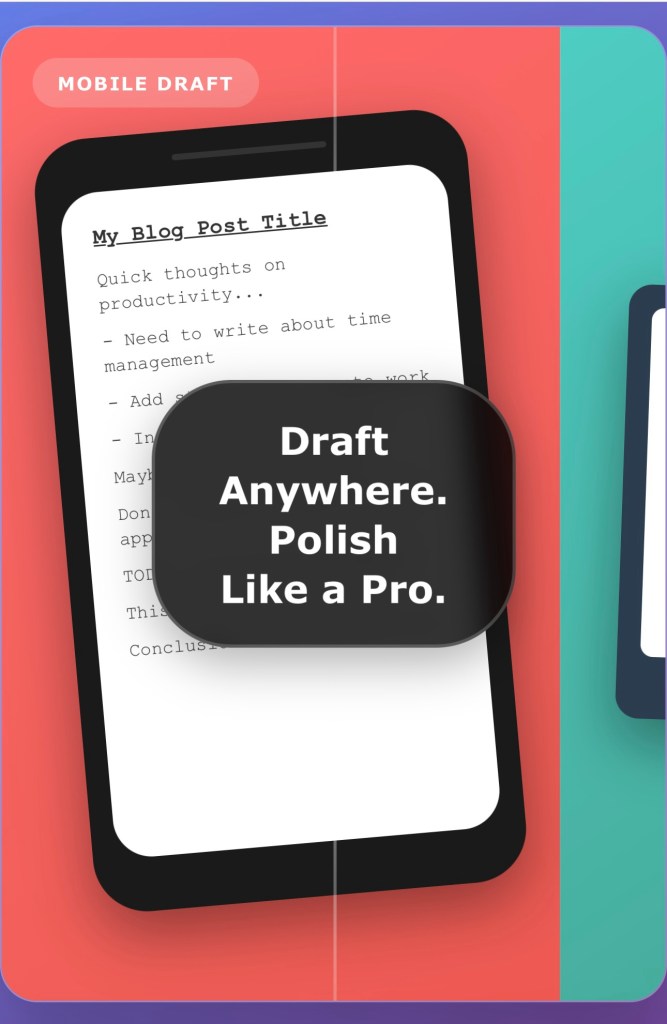
Step One: Draft on Mobile (Don’t Style Yet)
Start by writing your post in the Jetpack or WordPress app. Focus on getting your ideas down clearly.
Use basic blocks like paragraphs, headings, or maybe a quote or image.
There’s no need to worry about formatting or layout at this stage.
Just save your work as a draft.

Step Two: Open the Draft on Desktop
Log in to your WordPress dashboard on a desktop computer.
Go to your Posts section, find the draft, and open it in the block editor.

Step Three: Style It Using the Editor’s Built-In Tools
This is where the real visual transformation happens—and why the desktop step is so important.
The mobile app does not give you access to key design tools like font size adjustment, text and background color choices, spacing controls, or advanced layout blocks. You also don’t get access to block grouping, typography settings, or custom column formatting.
All of these are available in the desktop Block Editor.
Click any block, and the right-hand sidebar gives you full control over styling—allowing you to format your post with precision and personality.

From adjusting font sizes to creating clean white space with padding, or turning a subheading into a standout visual moment with background color, this stage is what elevates a draft into a fully realized blog post.

Step Four: Preview and Publish
Use the preview function to see how your post looks on both desktop and mobile screens.
Once you’re satisfied with how it reads and looks, go ahead and publish it.

Why This Workflow Works

Starting your post on mobile helps you capture ideas when they’re fresh.
Finishing on desktop allows you to fine-tune the layout, styling, and visual polish using tools that simply don’t exist on mobile.
You avoid the pressure of making your post perfect in one go. Instead, you focus first on clarity, then on creativity.

This workflow also helps separate the writing and editing phases, which makes both easier and more focused.

Summary

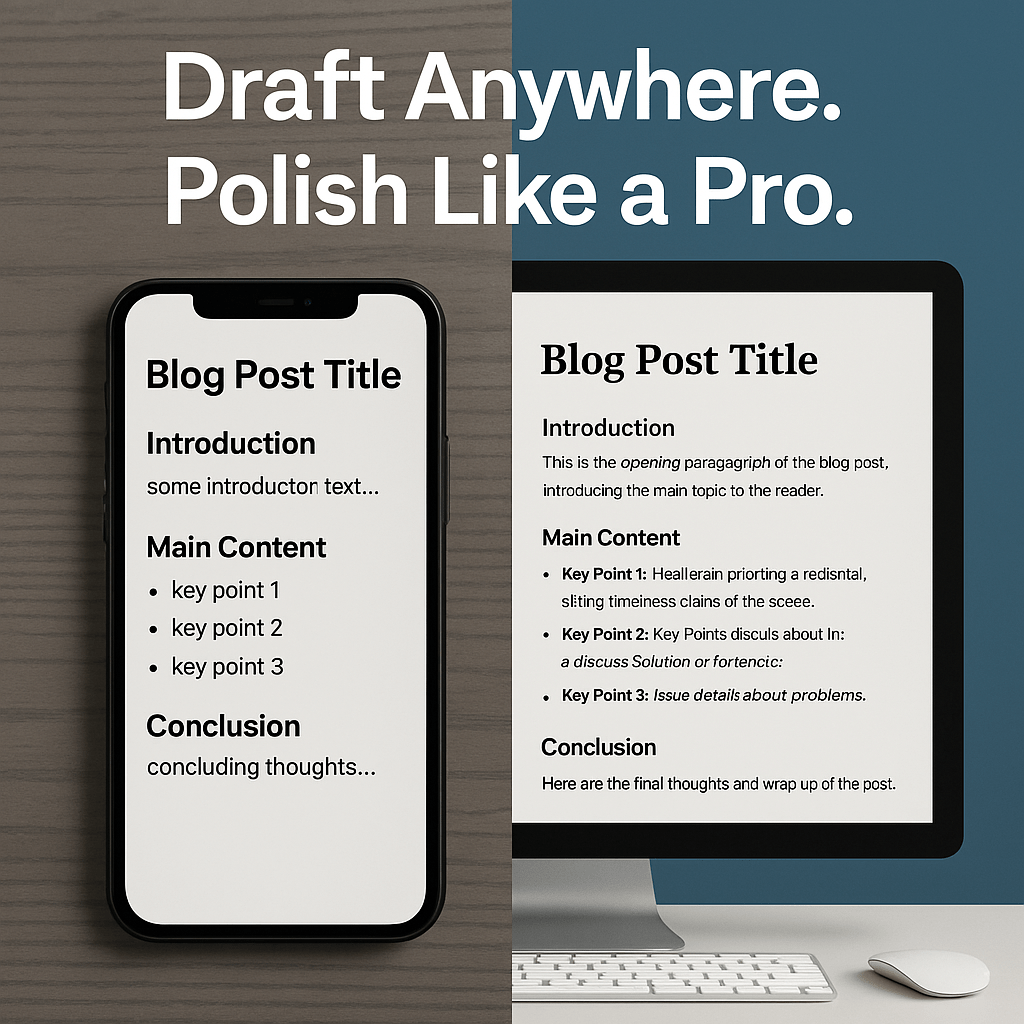
Draft on mobile to stay flexible and creative.
Style and polish on desktop to ensure your post looks professional and aligned with your voice.
Use the full range of desktop styling tools to create something visually refined and on-brand.
Finish by previewing across devices before publishing with confidence.

Discover more reflections and essays in the full archive.|   Personal Development

Categories: Astrology & Numerology | Daily Prompts | Law | Motivational Blogs | Motivational Quotes | Others | Personal Development | Tech Insights | Wake-Up Calls

🌐 Home | Blog | About Us | Contact| Resources

📱 Follow us: @RiseNinspireHub

© 2025 Rise&Inspire. All Rights Reserved.

Word Count:566

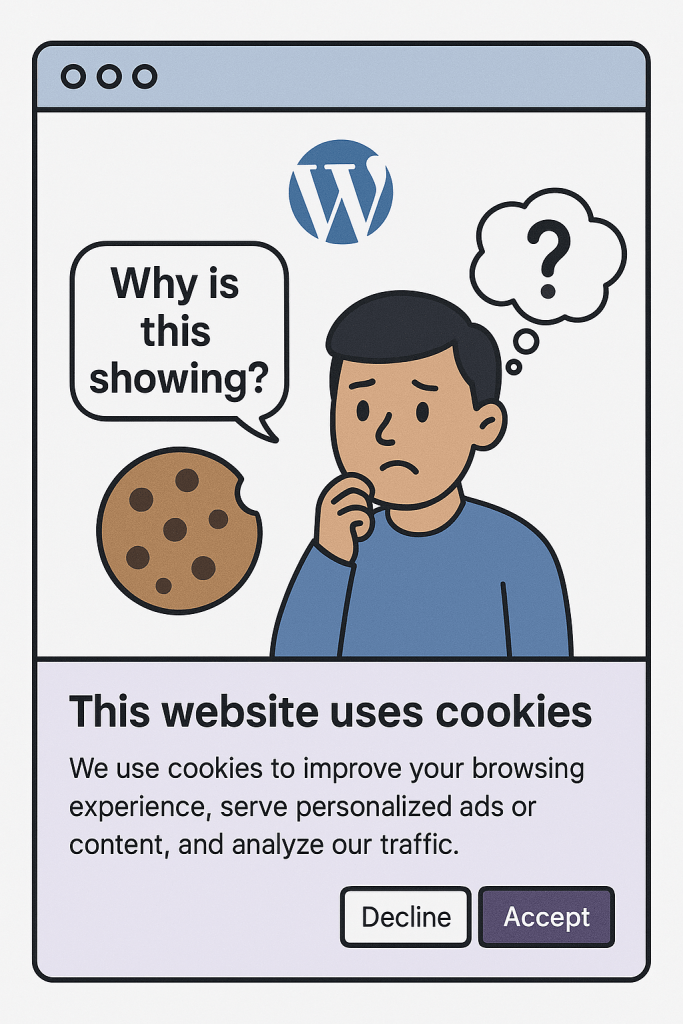
WHY IS A COOKIE CONSENT BANNER APPEARING ON MY WORDPRESS.COM SITE AUTOMATICALLY?

“Wondering why a cookie banner suddenly appeared on your WordPress.com site? Learn why WordPress enables it by default, how it helps with GDPR compliance, and how to customise or disable it for your blog.”

Why Is There a Cookie Banner on My WordPress.com Site? Here’s What I Learned

Recently, I opened my website, Rise&Inspire, and noticed something new—a message at the bottom of the screen that read:

“Privacy & Cookies: This site uses cookies. By continuing to use this website, you agree to their use.”

I was surprised. I hadn’t enabled any cookie banner myself. So, naturally, I wondered:
Did WordPress add this on its own? Do I need it? And can I change or remove it?

After a little digging, I found the answers—and if you’re a blogger or site owner on WordPress.com, this might help you too.

🌐 Why the Cookie Notice Appears Automatically

Whether you add it yourself or not, WordPress.com includes a cookie consent banner automatically on many sites. This isn’t a glitch or a mistake—it’s actually a legal protection for both you and your visitors.

If your site uses tools like:

  • Jetpack
  • Site Stats
  • Comments or Forms
  • Marketing integrations

…then your site is setting cookies. WordPress is just letting users know—especially those in the EU, UK, and California, where privacy laws like GDPR and CCPA require it.

I hadn’t enabled anything myself, but WordPress.com turned it on to help stay compliant with privacy regulations. That made sense.

⚙️ Can You Customise or Disable It?

Yes! If you’re using WordPress.com like me, here’s how I found the setting:

  1. Go to your WordPress.com Dashboard.
  2. Click on My Site > Settings > Privacy.
  3. Scroll to the Cookies & Consent section.
  4. From here, you can:
    • Enable or disable the banner
    • Customise the message, colours, and link to your privacy or cookie policy

I decided to leave mine enabled, but I made a few tweaks to the wording to better reflect Rise & Inspire’s tone.

💡 Should You Leave It On?

In my opinion—yes.

Even if you don’t feel it’s necessary, it:

  • Builds trust with your audience
  • Prevents legal issues for visitors in certain regions
  • Reflects transparency, which is part of what Rise&Inspire stands for

Plus, you don’t need to install any extra plugin or code—it’s already handled by WordPress.

📌 Final Thoughts

If you suddenly saw the cookie banner pop up on your site, don’t worry—you didn’t do anything wrong. In fact, WordPress.com is helping you stay protected.

As creators and bloggers, sometimes tech shifts behind the scenes, and we don’t even realise it. But with a little curiosity and patience, we can stay informed—and pass on the knowledge.

That’s what Rise&Inspire is all about: growing, learning, and rising together.

Explore additional inspiration from the blog’s archive. |   Personal Development

Categories: Astrology & Numerology | Daily Prompts | Law | Motivational Blogs | Motivational Quotes | Others | Personal Development | Tech Insights | Wake-Up Calls

🌐 Home | Blog | About Us | Contact| Resources

📱 Follow us: @RiseNinspireHub

© 2025 Rise&Inspire. All Rights Reserved.

Word Count:523

CAN YOU GAIN FOLLOWERS ON WORDPRESS WITHOUT POSTING ANYTHING?

Ever wonder how a WordPress blog with zero posts can still attract subscribers? Discover what the algorithm is doing behind the scenes and how follower growth works before you even hit “publish.”

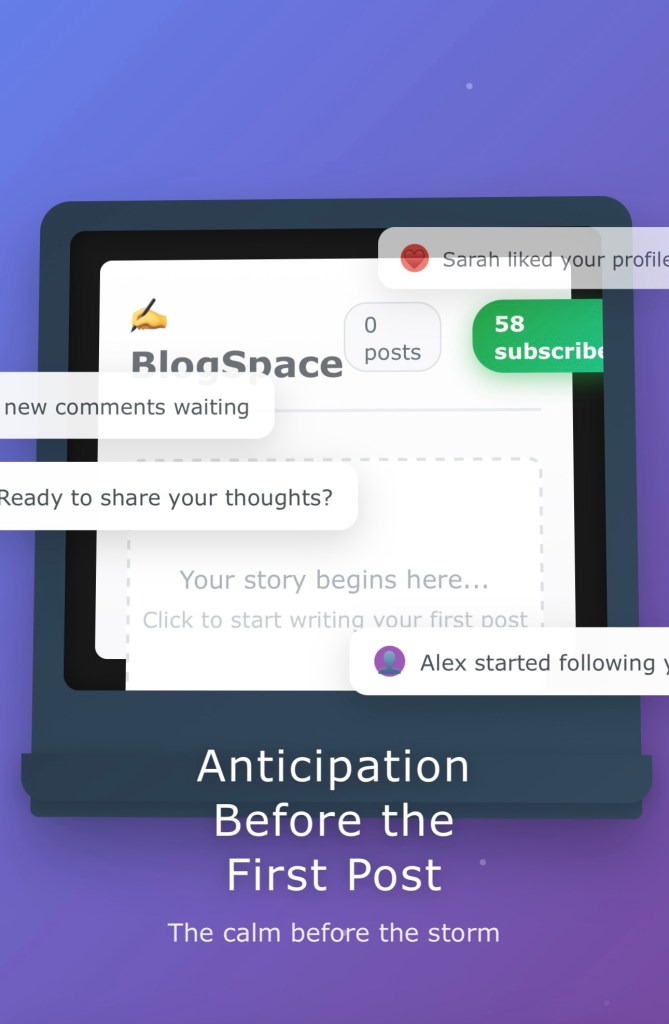
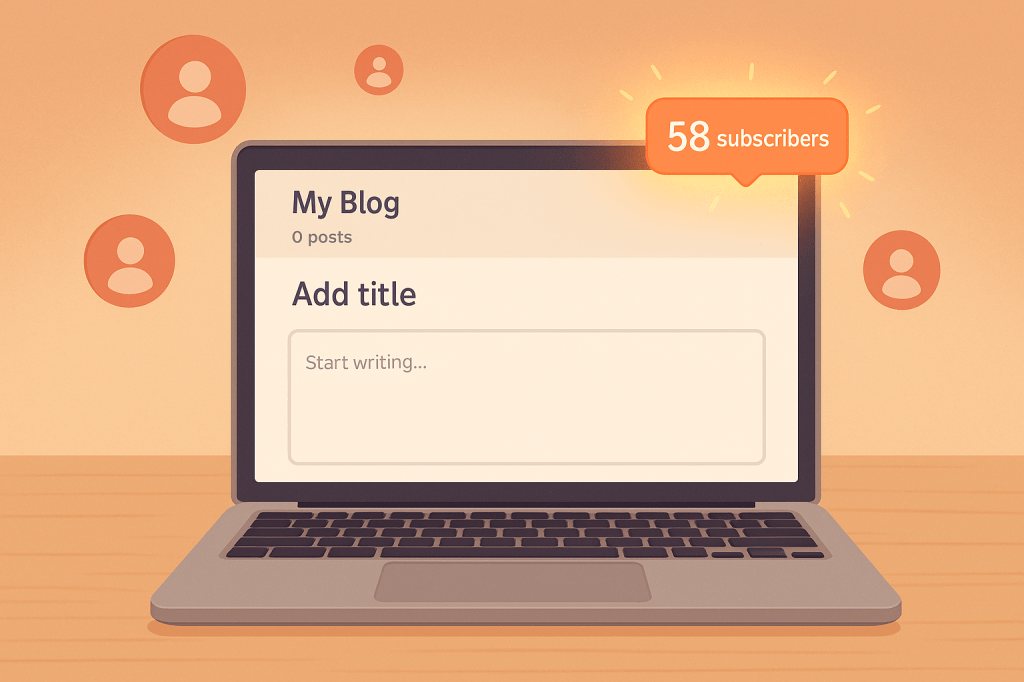
You’ve just set up your WordPress blog. The layout’s done, your bio is crisp, and you’re sitting on a head full of ideas — but you haven’t published a single post yet. Then it happens: you notice a curious number staring back at you…

“0 posts, 58 subscribers.”

Wait. What?

You haven’t written a single word. No posts, no public content — yet people are following you. How does that work?

Let’s unpack what’s really going on behind the scenes.

The Algorithm Doesn’t Wait for Your First Post

The WordPress system is designed to encourage connection. That means subscriptions (followers) and publishing (posts) are two separate things. You can gain followers even when your blog is completely empty — and the algorithm is totally fine with that.

In fact, it might even be helping you.

WordPress recommends new blogs through features like the Reader feed, “Discover” sections, or even tag-based searches. If your blog has a compelling title, topic, or username, you might start popping up in someone’s feed — no content required.

People Follow Potential, Not Just Posts

Even if your blog is empty, your profile isn’t.

Visitors can see your display name, blog title, maybe even your bio or links to your social media. If those elements are interesting or align with what someone’s looking for — boom, they follow you.

Sometimes they’re your friends. Other times, they’re future fans following a hunch.

A Snowball Effect You Didn’t Know You Started

Let’s say a few people follow you. That action might trigger a subtle boost in visibility through WordPress’s suggestion engine. More people see your blog, wonder what’s coming, and follow too.

It’s social proof in action: once the ball starts rolling, it can roll fast — even if your blog is still a blank canvas.

Your Next Step? Make That First Post Count

This early interest isn’t just surprising — it’s powerful.

Your followers are waiting. Maybe they’re curious. Maybe they believe in your potential. Either way, they’re a reminder that the best time to start publishing is… now.

So when you see “0 posts, 58 subscribers,” don’t be confused. Be encouraged.

You’ve already built the audience. Now give them something to read.

Explore additional inspiration from the blog’s archive. |   Personal Development

Categories: Astrology & Numerology | Daily Prompts | Law | Motivational Blogs | Motivational Quotes | Others | Personal Development | Tech Insights | Wake-Up Calls

🌐 Home | Blog | About Us | Contact| Resources

📱 Follow us: @RiseNinspireHub

© 2025 Rise&Inspire. All Rights Reserved.

Word Count:445

When My Blog Went Dark: Overcoming Website Woes

When Things Go Wrong: How I Fixed My Website’s Speed and Social Sharing Issues

Yesterday, something unexpected happened with my blog, Rise&Inspire. I had just shared a new post on social media, expecting the usual buzz of engagement. But to my surprise, when I clicked on the link, my site took forever to load. I was baffled. What went wrong?

It wasn’t just on social media either. When I tried typing the URL into Google Search, my site either didn’t respond or moved at a snail’s pace. Panic started to set in. As a blogger who’s built a daily habit of connecting with readers, this felt like a big blow. What could I do?

The Importance of a Fast Website

I’ve always known that website speed is crucial. In today’s fast-paced digital world, no one wants to wait for a page to load. If a site takes more than a few seconds, most people will simply move on to something else. For bloggers like me, this can mean losing potential readers—and even worse, it could impact the overall user experience and SEO rankings.

As I sat there staring at my slow-loading site, I began thinking about something I’d considered before—managed WordPress hosting. It’s a service designed for users like me, who want a fast, secure, and up-to-date website without the headache of managing technical details. I wondered if this was the next step I needed to ensure that Rise&Inspire would always run smoothly, no matter how many people visited or shared my content.

Social Media Sharing: Open Graph and Twitter Meta Tags

While troubleshooting, another thought crossed my mind: What if the issue was related to how my site displayed on social media? I had heard before about the importance of Open Graph (OG) and Twitter meta tags, which control how content appears when shared on platforms like Facebook, Twitter, and LinkedIn. These tags make sure that the right title, description, and image show up when someone shares your content—something that makes a huge difference in attracting clicks and engagement.

Without these tags, social media platforms often pull the wrong information, or worse, no information at all. I thought to myself, I need to make sure these meta tags are set up correctly. Maybe that was causing the issue with how my posts were shared. It felt like the possible solution was widening, but I still wasn’t sure what to do next.

When the Panic Set In

As the minutes ticked by and I clicked link after link with no improvement, I felt a rising sense of confusion and frustration. It wasn’t just about social media anymore; even accessing the site directly was slow. I checked my internet connection and tried different browsers, but the problem persisted. I was running out of ideas.

I thought about taking a break or digging deeper into the technical side, but I’m not exactly a web developer. I was in over my head. Then it hit me: Why not reach out to WordPress support?

The Power of Support

Sometimes, in moments of confusion, the simplest solutions are the most effective. So I submitted a support ticket to WordPress, explaining everything—site speed issues, trouble with Google Search, and how my content wasn’t displaying properly on social media. I wasn’t sure how long it would take to get a response, but I figured it was worth a shot.

To my surprise, within 15 minutes, I received a response. The team worked swiftly, and soon after, the issues were resolved. My site was back to loading quickly, and the content shared on social media platforms appeared just as it should—complete with the right title, description, and image. What a relief!

Lessons Learned

This whole experience taught me a few important lessons. First, website performance can be unpredictable, but having a reliable support system is invaluable. Without the quick intervention of WordPress support, I might have spent hours—or even days—trying to figure out what went wrong.

Second, while I’m not a technical expert, taking proactive steps to improve site performance is crucial. Managed WordPress hosting is now something I’m seriously considering for the future, as it offers peace of mind that my site will always be fast, secure, and optimized.

Lastly, ensuring that my website has Open Graph and Twitter meta tags properly configured is key to improving visibility when sharing content on social media. It’s a small technical detail, but it makes a world of difference in how my blog is perceived by potential readers.

Moving Forward

While the initial confusion and stress were overwhelming, this experience ultimately reminded me of the importance of staying calm, seeking help when needed, and being open to new solutions. Technology can be unpredictable, but with the right tools and support, it’s always possible to find a way forward.

So, if you ever find yourself facing similar website issues, don’t panic. Reach out for help, learn from the experience, and keep improving. After all, every challenge is just an opportunity to make things better.

This blog post reflects my personal journey of navigating a website crisis, sharing both the practical steps I took and the lessons I learned. I hope this helps other bloggers who may find themselves in the same situation—because at the end of the day, it’s all about staying resilient and continuing to inspire.

For more tips and updates, visit Rise&InspireHub—your go-to source for technology, inspiration, and productivity.

Stay connected with us!

📧 Email: kjbtrs@riseandinspire.co.in

Who Visited My Blog? Exploring the Mystery of Views and Visitors

Every morning, I find myself eagerly checking my blog’s stats on the Jetpack app, curious to see how Rise&Inspire is connecting with readers. It’s like a quick pulse check on the heart of my blog—those numbers offer insights, but they also spark curiosity. Who’s stopping by? What posts are they drawn to? And what brings them back? These questions keep me engaged, driving my passion for writing and connecting with my audience. Today, something intriguing caught my eye: one unique visitor, 25 views, and 9 likes. It made me wonder—who was this visitor, and what exactly do these numbers tell me?

When I checked my Jetpack stats on the WordPress app, I noticed something interesting:

  • Views: 25
  • Visitors: 1
  • Likes: 9

At first glance, it got me thinking—what exactly does this data mean? And more importantly, who was that unique visitor on my blog Rise&Inspire this morning?

Understanding the Difference Between Views and Visitors

After some digging, I realized that views and visitors are two different metrics.

  • Views count every time a page on my blog is loaded, even if the same person refreshes it or navigates to multiple posts. This explains why my blog had 25 views from just one visitor.
  • Visitors are the unique individuals who stop by the blog. So, in this case, one person explored my blog and likely viewed multiple pages, which racked up those 25 views.

The 9 likes indicate how many times people liked my posts, though it doesn’t necessarily match up with views or visitors—someone could visit without leaving a like, or like multiple posts in one visit.

Can I Identify Who My Unique Visitor Was?

This is where things get tricky. WordPress, with its emphasis on privacy, doesn’t allow me to pinpoint exactly who visited unless they interact directly—like leaving a comment or hitting the “like” button. Without that, it’s a bit like trying to guess who left without saying hello.

However, there are a few clues I can explore:

  • Comments or Likes: If my unique visitor engaged with my content, I might see their WordPress username or profile.
  • Jetpack Stats: These give me some additional insights, like where my visitor is from or which page they spent the most time on. While it won’t reveal their identity, it gives me a general sense of their activity.

Finding My Own Visitors—Is It Possible?

While I can’t directly identify the visitor, there are a few ways I might be able to recognize them:

  • Logged-In Users: If the visitor is logged into WordPress and interacts with my blog, their username may show up in the activity logs or comments.
  • Comment Section: If they leave a comment, I can see their details like the username or even an IP address, though recognizing an IP might require a little detective work on my part!

But beyond these indirect methods, WordPress keeps the personal information of visitors private. In many ways, this is a good thing—it ensures that people feel comfortable browsing blogs without worrying about being tracked. For me, it’s a reminder to focus on fostering engagement, inviting comments, and creating an open dialogue with my readers.

My Takeaway

While I can’t always know exactly who visited my blog, I can still focus on what matters most: creating content that resonates with readers and encourages them to interact. Whether it’s through likes, comments, or returning visits, those interactions give me a way to connect with my audience—one post at a time.

For more tips and updates, visit Rise&InspireHub—your go-to source for technology, inspiration, and productivity.

Stay connected with us!

📧 Email: kjbtrs@riseandinspire.co.in

👉Two “views” and four “Likes”